
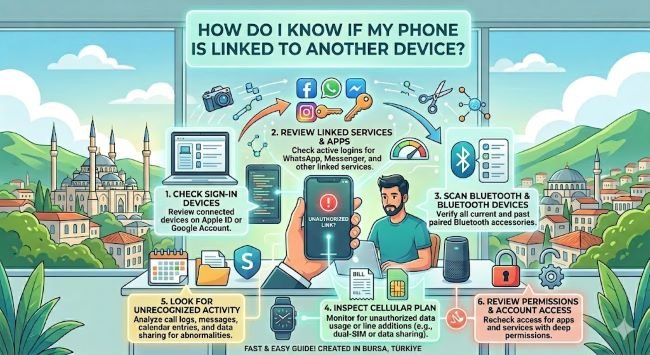
Smartphones have become the center of our digital lives. From social media and banking apps to emails and private photos, almost everything is stored on our devices. Because of this, many people worry about unauthorized access and ask, how do I know if my phone is linked to another device without my permission?
The good news is that both Android and iPhone provide several ways to check connected devices, active sessions, and account activity. By identifying unusual signs early, you can protect your personal information and prevent security risks.
This guide explains how to identify suspicious connections, review your accounts, and secure your phone from unwanted access.
Common Signs That Your Phone May Be Connected to Another Device
Before checking your settings, pay attention to unusual behavior on your phone. Some warning signs may indicate that another person or device has access to your information.
Faster Battery Drain
A battery that suddenly drains much faster than normal could be a sign that unknown apps, background processes, or synchronization activities are running on your device.
However, battery problems are not always caused by unauthorized access. Old batteries, software updates, and heavy applications can also reduce battery performance.
Unknown Apps or Settings Changes
Check your phone for applications you do not remember installing. Also look for changes such as modified passwords, disabled security settings, or unfamiliar permissions granted to certain apps.
Increased Data Usage
Unexpected mobile data consumption can sometimes indicate that apps or services are sending information in the background. Reviewing your monthly data reports can help you identify unusual activity.
How Do I Know If My Phone Is Linked to Another Device Through My Accounts?
One of the easiest ways to identify connected devices is by reviewing your online accounts. Many services display the devices currently logged in using your credentials.
Checking Google Account Connected Devices on Android
If you use an Android phone, your Google account keeps a record of devices signed into your account.
Follow these steps:
- Open your Google Account settings.
- Go to the Security section.
- Find the “Your Devices” area.
- Review all phones, tablets, computers, and other devices connected to your account.
- Sign out of any device you do not recognize.
You should also review recent security activity to see if there have been unknown login attempts.
Checking Apple ID Connected Devices on iPhone
iPhone users can review devices connected to their Apple ID.
To check:
- Open Settings.
- Tap your Apple ID profile at the top.
- Scroll down to see all devices connected to your account.
- Select any unfamiliar device and remove it.
This helps ensure that only your trusted devices have access to your iCloud information.
Check Bluetooth and Other Wireless Connections
Sometimes people searching how do I know if my phone is linked to another device are referring to Bluetooth connections or nearby devices.
Open your Bluetooth settings and review the list of paired devices. Remove headphones, speakers, smartwatches, or other devices that you no longer use or do not recognize.
You should also review:
- Wi-Fi networks your phone automatically joins.
- Smart home devices connected to your account.
- Nearby sharing and device synchronization settings.
Look for Suspicious Apps With Special Permissions
Some applications have advanced permissions that allow them to access messages, location, microphone, camera, or files.
Review your application permissions by:
- Opening your phone settings.
- Selecting Apps or Privacy settings.
- Checking permissions for location, microphone, camera, contacts, and storage.
- Removing access from suspicious applications.
Avoid downloading apps from unofficial sources because they can contain malware or spyware.
How Do I Know If My Phone Is Linked to Another Device Through Messaging Apps?
Many communication apps allow multiple devices to access the same account. For example, messaging services may remain logged in on computers, tablets, or web browsers.
Check the linked devices section inside your messaging applications and review active sessions. If you see an unfamiliar computer or tablet, immediately log it out and change your account password.
Also enable two-factor authentication to prevent unauthorized access in the future.
Steps to Remove Unauthorized Devices From Your Phone
If you discover an unknown connection, take immediate action to secure your information.
Follow these steps:
Change Your Passwords
Update passwords for important accounts including email, social media, cloud storage, and banking applications. Use strong passwords that combine letters, numbers, and symbols.
Enable Two-Factor Authentication
Two-factor authentication adds another security layer by requiring a verification code in addition to your password.
Remove Unknown Devices
Sign out of unfamiliar devices through your Google account, Apple ID, or individual application settings.
Update Your Phone Software
Install the latest operating system updates because they often include important security improvements and bug fixes.
Prevent Your Phone From Being Linked Without Your Permission
Prevention is always better than fixing a security issue later. Follow these best practices:
- Keep your phone locked with a strong password or biometric security.
- Avoid connecting to unknown public Wi-Fi networks.
- Download applications only from official app stores.
- Regularly check account login activity.
- Turn off Bluetooth when you are not using it.
- Avoid sharing your passwords with others.
Following these habits significantly reduces the chances of unauthorized access.
Frequently Asked Questions
Can Someone Link Their Device to My Phone Without Me Knowing?
Yes, in some cases someone may gain access through your accounts, shared passwords, or unauthorized applications. Regularly checking your account security settings helps you identify suspicious activity.
How Do I Know If My Phone Is Linked to Another Device After a Security Breach?
If you suspect a security issue, check your Google or Apple account devices, review app permissions, monitor login activity, and remove anything unfamiliar. You should also change your passwords immediately.
Does Factory Reset Remove Linked Devices?
A factory reset removes data and applications from your phone, but it may not automatically remove devices linked through online accounts. You should manually review your Google, Apple, and app account sessions.
Final Thoughts
If you have been asking yourself how do I know if my phone is linked to another device, the answer lies in regularly reviewing your account activity, connected devices, app permissions, and security settings.
Most cases are easy to identify and resolve by removing unfamiliar devices, changing passwords, and enabling stronger security measures. Making these checks part of your routine will help keep your private data safe and your smartphone under your control.